You open your website expecting it to load instantly — and instead you’re staring at a blank screen or a spinning loader for several seconds. If this is happening to you, it’s almost certainly happening to your visitors too, and many of them won’t wait around to find out what’s on the other side.
WordPress powers a huge share of websites because it’s flexible and easy to manage. But that same flexibility — themes, plugins, page builders, third-party integrations — is exactly what makes WordPress sites prone to becoming slow over time. The good news is that a slow WordPress website is almost always fixable, once you know what’s actually causing the problem.
This article walks through the most common reasons WordPress sites slow down, how to check what’s happening on your specific site, and practical ways to fix each issue.
Why Website Speed Actually Matters
Before getting into causes, it’s worth being clear about why this matters beyond just “feeling fast.”
- Visitor patience is short. Most people abandon a page that takes more than a few seconds to load, especially on mobile.
- Speed affects conversions. A slow site adds friction at every step — browsing, reading, filling out a form — which quietly reduces enquiries and sales.
- Search engines factor in speed. Page experience and loading performance are part of how search engines evaluate a site, alongside content quality and relevance.
- Speed reflects on your brand. A slow, clunky website can make even a great business look outdated or unreliable.
With that context, here are the most common reasons a WordPress site slows down.
1. Poor or Overloaded Hosting
Hosting is the foundation everything else sits on. If your hosting plan doesn’t have enough resources for your site’s traffic and complexity, no amount of optimization elsewhere will fully fix the problem.
Common hosting issues include:
- Being on cheap, shared hosting where your site competes for resources with hundreds of other websites
- A hosting plan that was fine at launch but hasn’t scaled with your traffic
- Servers located far from your main audience, adding latency
- Outdated server software (old PHP versions, outdated web server configurations)
How to Check
Look at your hosting dashboard for resource usage (CPU, memory) during peak times. If your site slows down noticeably when traffic increases, hosting capacity is a likely culprit.
How to Fix It
Moving to quality managed WordPress hosting or a hosting provider built for performance often produces one of the biggest speed improvements available — sometimes bigger than any plugin or setting change.
2. Unoptimized Images
Images are one of the single biggest contributors to slow-loading pages, and it’s an issue almost every WordPress site runs into at some point.
This typically happens when:
- Images are uploaded at full camera or design resolution instead of resized for web use
- Images aren’t compressed before or after upload
- The wrong file format is used (large PNGs where a compressed JPEG or WebP would work)
- Images aren’t set to load only when needed (lazy loading)
How to Fix It
- Resize images to the actual dimensions they’ll display at
- Compress images before uploading, or use a WordPress plugin that compresses automatically
- Switch to modern formats like WebP where possible
- Enable lazy loading so images below the fold only load as the visitor scrolls to them
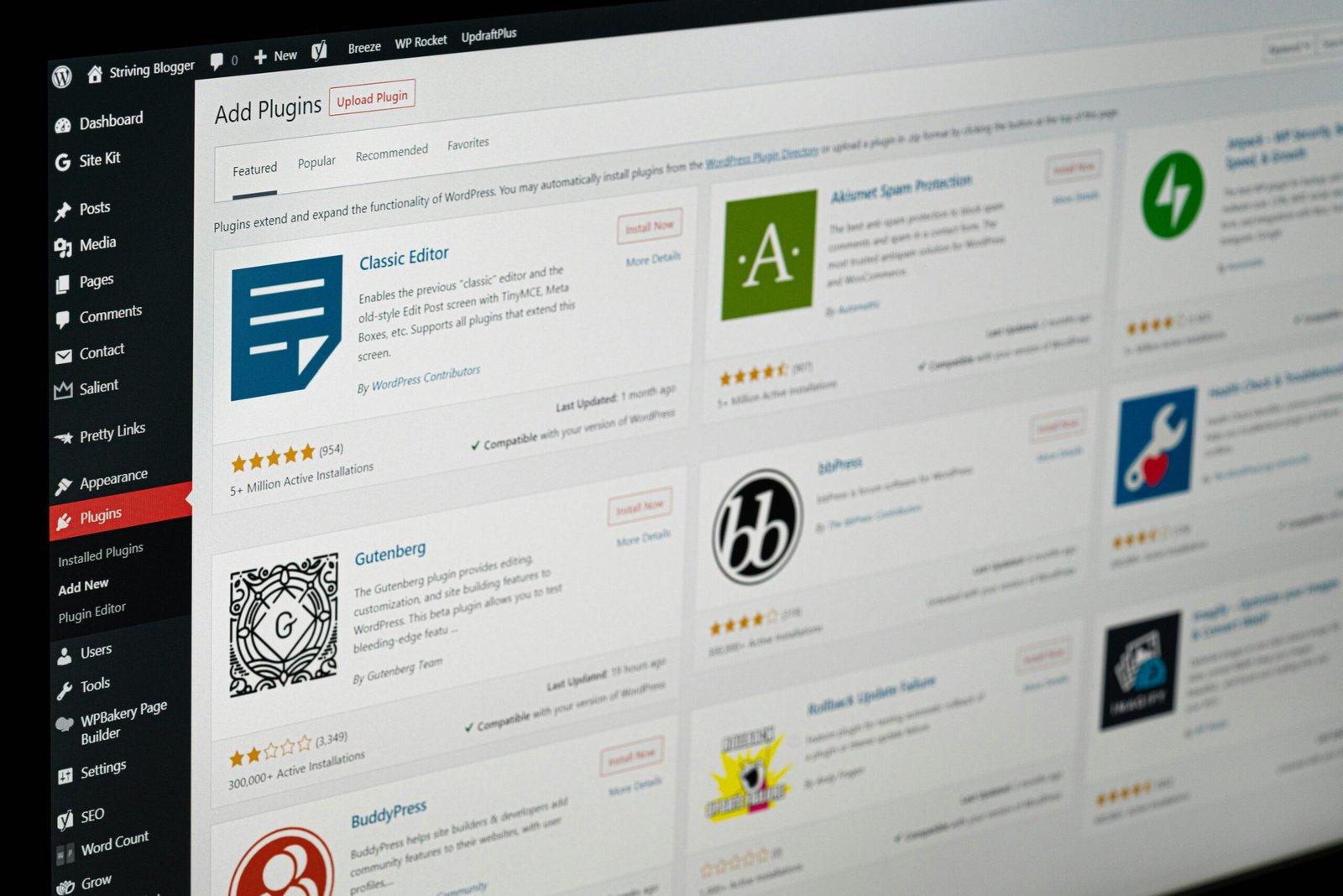
3. Too Many Plugins (or Poorly Coded Ones)
Plugins extend what WordPress can do, but each one adds extra code that has to load and run. A site with dozens of plugins — especially older or poorly built ones — can slow down significantly, even if each plugin seems small on its own.
Watch for:
- Plugins you installed once and never use anymore
- Multiple plugins that do overlapping jobs (two SEO plugins, two caching plugins, etc.)
- Plugins that haven’t been updated in a long time
- Heavy plugins that load scripts on every page, even where they aren’t needed
How to Fix It
Audit your plugin list and deactivate anything you’re not actively using. For the plugins you keep, check whether lighter alternatives exist. Testing your site’s speed before and after deactivating a plugin is a simple way to identify which ones are actually causing slowdowns.
4. Heavy or Bloated Themes
Some WordPress themes — particularly multipurpose themes packed with built-in features, sliders, and page-builder integrations — load a large amount of code whether you use those features or not.
Signs your theme may be part of the problem:
- The theme includes dozens of “demo” layouts and features you never use
- It relies heavily on a page builder for even simple layouts
- It loads multiple font files, icon libraries, and animation scripts by default
How to Fix It
A lighter, well-coded theme built around performance can make a noticeable difference, especially when paired with a simpler page-building approach. This doesn’t always mean sacrificing design quality — many fast-loading themes are just as visually polished as heavier ones.
5. No Caching Set Up
Without caching, WordPress has to rebuild each page from scratch, from the database, every single time someone visits — even if the content hasn’t changed. This is one of the most resource-intensive things a WordPress site does repeatedly and unnecessarily.
How to Fix It
Caching plugins (or caching built into your hosting) store a ready-to-serve version of your pages, so repeat visits — and often first visits too — load dramatically faster. This is typically one of the simplest, highest-impact fixes available for a slow WordPress site.
6. No Content Delivery Network (CDN)
If your server is in one location, visitors far away from that location will naturally experience slower load times, since data has to travel further.
How to Fix It
A CDN stores copies of your site’s static files (images, CSS, JavaScript) on servers around the world, so visitors load content from a location close to them rather than from your main server every time. This is particularly useful if your audience is spread across multiple countries or regions.
7. Unoptimized Database
Over time, a WordPress database accumulates clutter — old post revisions, spam comments, expired transients, unused plugin data — that can slow down how quickly the database responds to requests.
How to Fix It
Regularly clean up your database: remove unnecessary post revisions, delete spam and trashed comments, and clear out leftover data from plugins you no longer use. Several plugins can automate this, or it can be done manually for more control.
8. Too Many Render-Blocking Scripts
Some scripts and stylesheets have to fully load before the rest of the page can display, which delays what visitors actually see — even if the page is technically “loading” in the background.
This is common with:
- Multiple third-party tracking scripts (analytics, ad pixels, chat widgets) all loading immediately
- Custom CSS and JavaScript that isn’t properly minified or combined
- Fonts loading in a way that blocks text from displaying
How to Fix It
Defer or delay non-essential scripts so they load after the main content, minify CSS and JavaScript files, and limit the number of third-party tools running simultaneously. Each additional tracking script or widget adds real, measurable load time.
9. Outdated PHP Version or WordPress Core
WordPress and PHP are both updated regularly, with newer versions typically offering meaningful performance improvements alongside security fixes. Running an old PHP version or delaying WordPress core updates can leave real performance on the table.
How to Fix It
Check your current PHP version in your hosting dashboard and update to a current, supported version if you’re behind. Keep WordPress core, themes, and plugins updated — not just for speed, but for security as well.
How to Check What’s Actually Slowing Your Site Down
Rather than guessing, run your site through a diagnostic tool and look at the specific recommendations it gives:
- Google PageSpeed Insights — shows both real-user and lab data, with specific suggestions
- GTmetrix — provides a detailed waterfall breakdown of what’s loading and how long each item takes
- Lighthouse (built into Chrome DevTools) — useful for a quick technical audit
These tools will usually point to one or two dominant issues (large images, render-blocking scripts, slow server response time) rather than a vague overall problem. Treat the score as a diagnostic starting point, not the end goal — the real objective is a fast, smooth experience for actual visitors.
When Should You Get Professional Help?
Some WordPress speed issues — compressing an image, deactivating an unused plugin — are easy to handle yourself. Others go deeper and are harder to diagnose without technical experience, particularly:
- Server-level or hosting configuration issues
- Conflicts between plugins that only appear under certain conditions
- Database problems that need careful cleanup without breaking functionality
- A theme or page-builder setup that would need to be rebuilt for real performance gains
- Sites where multiple issues are layered on top of each other
In these cases, a structured Website Speed Optimization review can help pinpoint exactly what’s slowing your site down and fix it properly, rather than applying generic tweaks that only address part of the problem. For sites where speed issues are tied to an aging theme or structure, a broader WordPress Website Design & Development refresh may be the more effective long-term solution.
Final Thoughts
A slow WordPress website is rarely caused by one single thing — it’s usually a combination of hosting limitations, unoptimized images, plugin bloat, and missing performance basics like caching. The good news is that each of these causes is diagnosable and fixable, often without needing to rebuild your entire site.
Start with a speed test, look at what it flags, and work through the highest-impact issues first — hosting, images, and caching tend to deliver the biggest gains. From there, ongoing maintenance (keeping plugins minimal, images optimized, and software updated) will keep your site running fast as it grows.
Is your WordPress website loading slowly?
WebNexovate can run a speed diagnostic on your WordPress site, identify exactly what’s slowing it down, and fix the underlying issues — from hosting and caching to images and code — so your site loads fast for real visitors.
[Get a Free Website Speed Check]
Frequently Asked Questions
Why is my WordPress site loading slowly on mobile but not desktop?
Mobile devices typically have less processing power and slower, less stable connections than desktop computers, which makes existing speed issues more noticeable. Large images, render-blocking scripts, and heavy themes tend to have a bigger impact on mobile load times specifically.
Will switching hosting actually make my WordPress site faster?
It can make a significant difference, particularly if you’re currently on a low-resource shared hosting plan. However, hosting alone won’t fix issues like unoptimized images or plugin bloat — it addresses server capacity, not front-end performance problems.
How many plugins is too many for WordPress?
There’s no fixed number that applies to every site — it depends more on plugin quality and what each one does than the total count. A site with 10 well-coded, actively necessary plugins can run faster than a site with 5 poorly built or overlapping ones.
Does a caching plugin fix all speed problems?
No. Caching helps significantly, especially for repeat visits, but it doesn’t fix underlying issues like large unoptimized images, a bloated theme, or weak hosting. It’s one important piece of a broader speed strategy, not a complete solution on its own.
How can I test my WordPress website’s speed?
Free tools like Google PageSpeed Insights, GTmetrix, and Lighthouse can test your site and provide specific, actionable recommendations. It’s worth testing both desktop and mobile versions, since results often differ between the two.